The short answer
The fastest way to move from Windows to Mac is not to install twenty “must-have” apps on day one. First make input and shortcuts comfortable, then fix windows and files, then add only the everyday tools you truly miss, and finally configure your professional workflow.
This is FreeMac's Windows-to-Mac hub. It tells you what to do next, while the detailed guides cover each setting, app choice, and command in depth. That keeps a broad migration plan from turning into a shallow checklist.
Your migration roadmap
| Stage | Goal | Read this first | What can wait |
|---|---|---|---|
| Day one | Type, take screenshots, find files, and tile windows comfortably | Your first day with a new Mac | Cleaning apps and terminal tools |
| First week | Set up your system and input method, then build file habits | 12 settings to change, Chinese input methods | Forcing yourself to love the trackpad immediately |
| Second week | Fill genuine workflow gaps with free tools | Free Mac app rankings, free alternatives to paid Mac software | Finding a one-to-one Mac replacement for every Windows app |
| Developer stage | Set up Homebrew, editors, language runtimes, and AI tools | The 30-minute developer setup | Terminal commands for people who do not need them |
Day one: make the awkward parts feel normal
The first friction is usually muscle memory, not performance: scrolling feels backward, Ctrl shortcuts seem wrong, windows do not snap as expected, screenshots disappear somewhere, and closing a window does not quit an app.
None of that requires a download. Work through Your First Day with a New Mac for scrolling, trackpad, window layout, Dock, Finder, and screenshots. That is enough to get real work done.
The rule for day one is simple: make high-frequency actions comfortable before learning a new workflow. You can turn off natural scrolling first and return to the default later. Migration is not a test of whether you can copy someone else's habits in 24 hours.
Week one: understand quitting, Finder, and shortcuts
The biggest Windows–macOS differences are conceptual, not visual:
- The red window button normally closes a window; it does not necessarily quit the app.
- Command is the main modifier for most shortcuts. It is not merely a renamed Ctrl key.
- Finder is more than “This PC”; its sidebar, tags, and Spotlight search are part of the file workflow.
- Dragging, copying, and moving do not always follow Windows defaults.
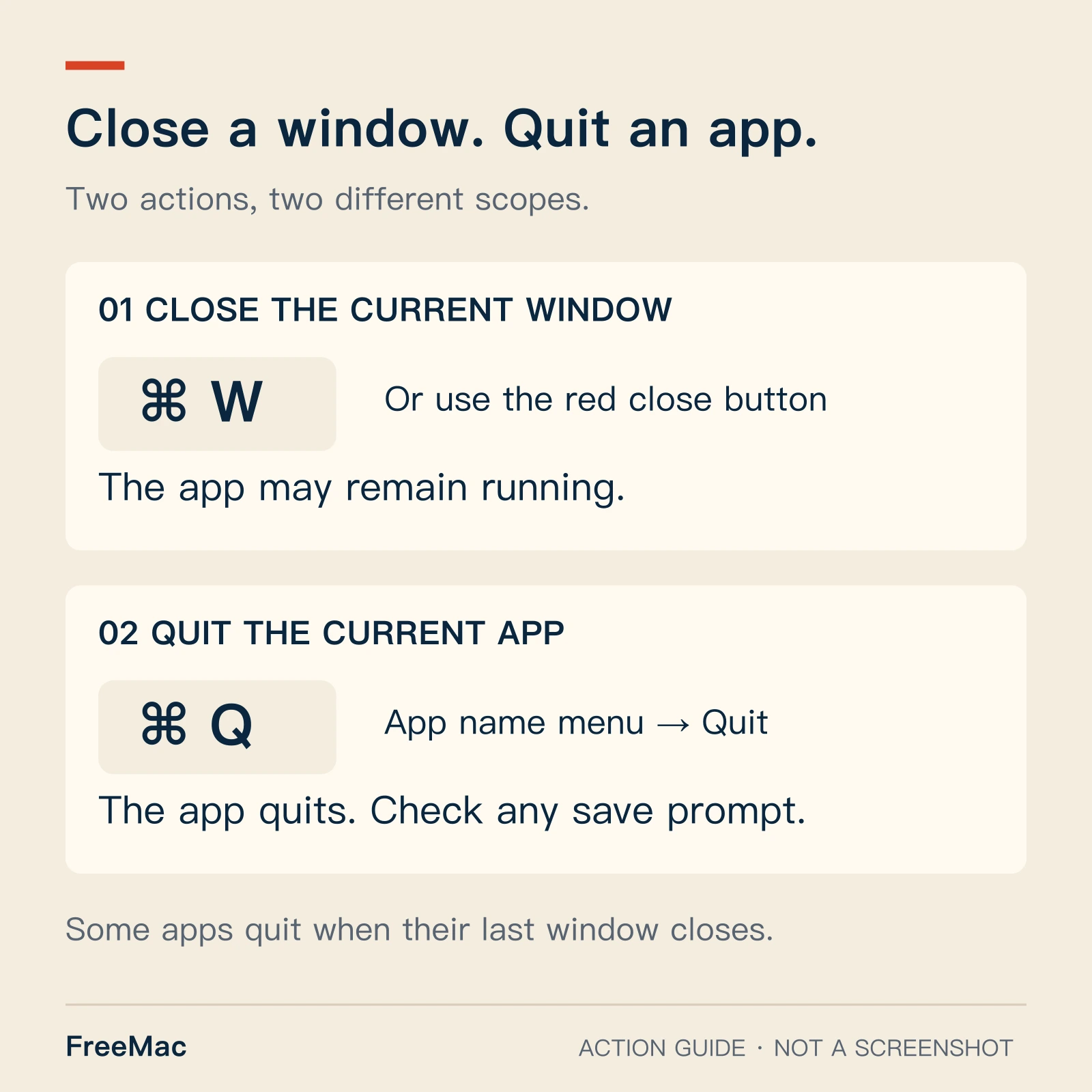
An action guide, not a screenshot. Normally, use ⌘W to close the current window and ⌘Q to quit the current app. Check any unsaved-document prompt before quitting. See Apple: Quit apps on Mac.
If those ideas are not clear, extra apps only reproduce old habits on a new operating system. 10 Mac Mistakes Windows Switchers Should Avoid explains the underlying differences. For immediate fixes to scrolling, Delete, and copy-paste, see five day-one problems.
Change only the settings you use every day
Someone else's “best settings” are not automatically yours. Prioritize the settings you touch constantly: trackpad clicking and dragging, keyboard repeat speed, Finder extensions and path bar, screenshot location, privacy permissions, and window behavior.
12 Mac Settings to Change After Switching from Windows works as a checklist. Change one item, use it for a day, and keep it only if it helps. Changing everything at once makes it impossible to know what improved the experience.
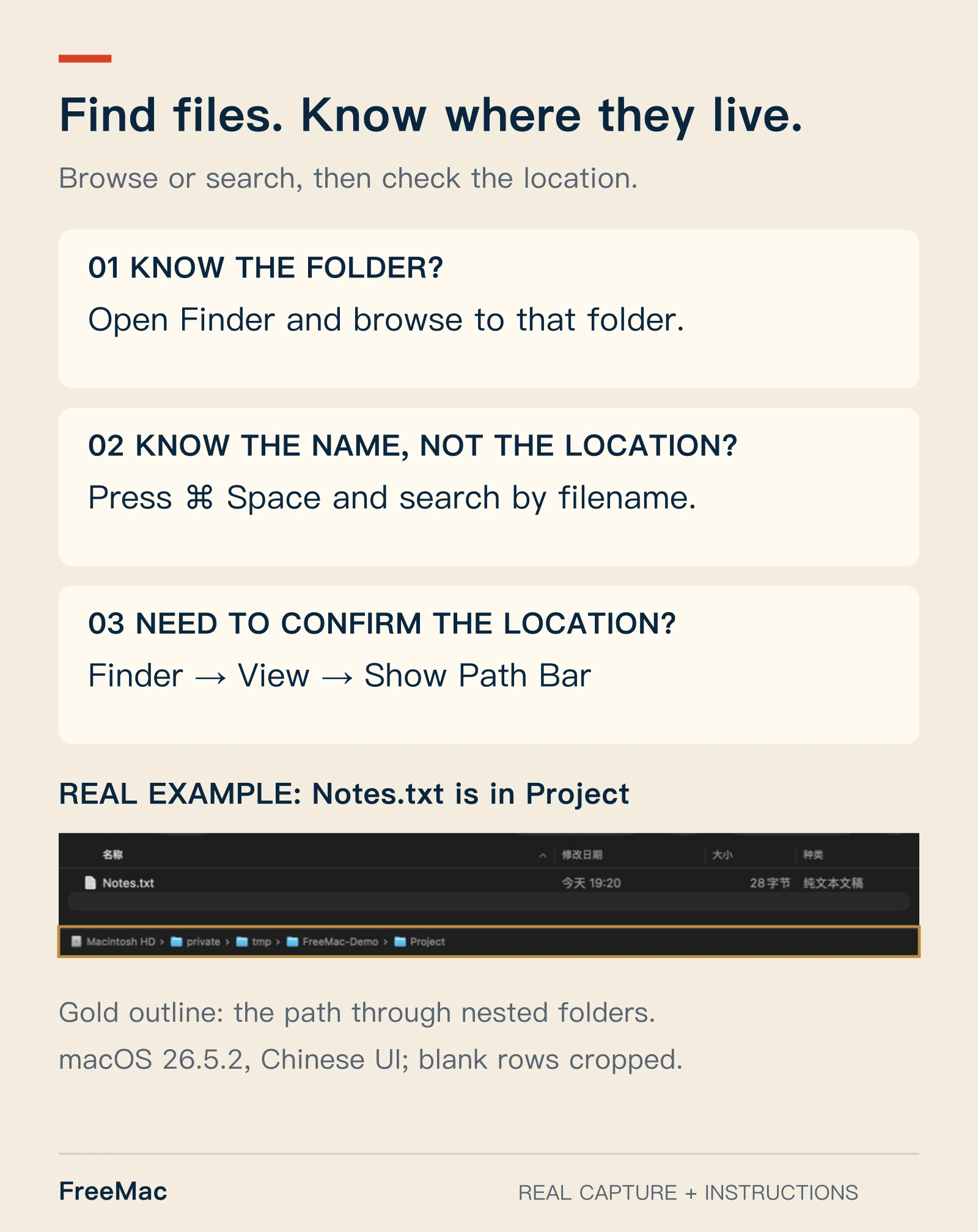
Captured on macOS 26.5.2 with Chinese interface labels and demonstration files; blank rows were cropped. In Finder, choose View → Show Path Bar to confirm the location. ⌘Space is the default Spotlight shortcut; use your configured shortcut if you changed it. See Apple's path bar instructions and Spotlight guide.
Input methods: choose stability and clear privacy boundaries
For Chinese users, input method choice has an outsized effect on long-term comfort. Consider more than the dictionary: candidate speed, cloud sync, privacy, keyboard switching, and device habits all matter.
Use the Chinese input-method comparison to understand the tradeoffs. On a work device or when typing sensitive information, check the data and cloud boundary before moving your entire typing workflow just because another app has a larger dictionary.
Apps: fill gaps instead of installing a ranking
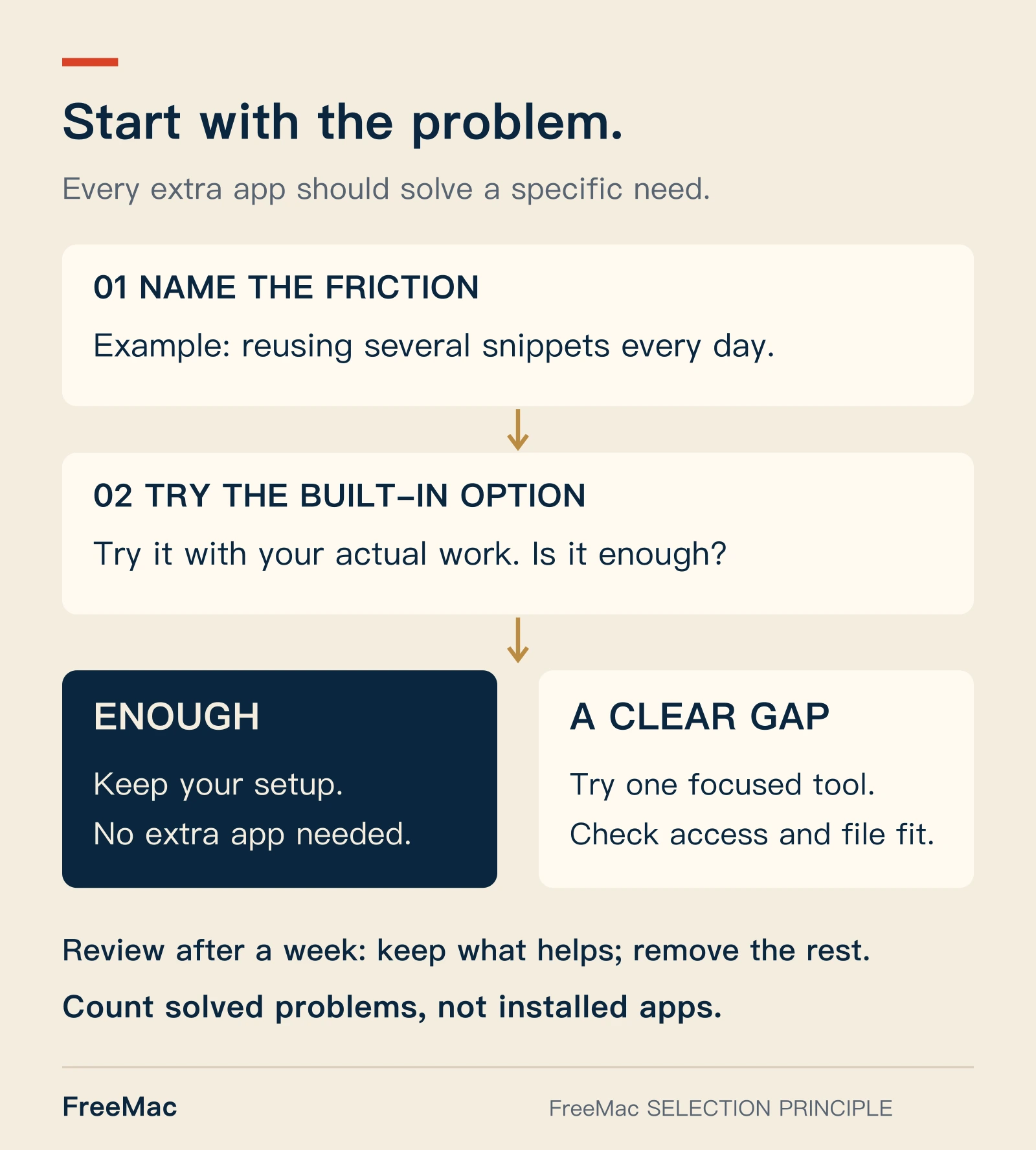
Test built-in features with real work first. Add a tool only for a clear gap, check permissions and file compatibility, and keep what proves useful after a week.
Once the system feels comfortable, add only the things macOS does not cover for you. For many Windows switchers, the usual order is:
- Window management: try Rectangle when you need keyboard window tiling.
- Clipboard history: consider Maccy only if you regularly reuse multiple pieces of text or code.
- Local video and file transfer: choose IINA or LocalSend based on the formats and devices you actually use.
- Uninstalling: use AppCleaner when you have a specific app to remove.
The 2026 free Mac apps list explains a useful installation order, while the live rankings maintain download sources, free-use boundaries, and fit. Pick one or two tools for today's pain point rather than installing the whole list.
Do not rush into paying for “system cleaning”
New Mac owners are easy targets for promises about junk cleaning, memory release, and acceleration. Define the job first: if you only need to uninstall an app and review common leftovers, AppCleaner is a simple starting point. If you need storage audits, long-term disk management, or enterprise maintenance, then evaluate a larger paid tool.
Free Alternatives to Paid Mac Software organizes those choices by job and makes clear when a free replacement is the wrong tradeoff.
Office and file collaboration: validate the deliverable
Documents, spreadsheets, and presentations are not only about whether a file opens. For personal writing, simple tables, and PDF exports, begin with what macOS already does for office work. If your workplace depends on complex Excel templates, macros, Power Query, or strict Office coauthoring, test with real files before cancelling a subscription.
Correct delivery comes before saving a software bill.
Developers: wait until the basics are stable
Windows developers often install Homebrew, Node, Docker, and AI tools immediately. When keyboard, file, and permission habits are still unsettled, that makes troubleshooting harder.
Finish the basic stages first, then follow the Windows-to-Mac developer setup guide. It separates the terminal steps developers need from the parts ordinary users can safely skip.
Review after one week
- Which actions still make you stop and think, “How did I do this on Windows?” Write them down, then look for the relevant setting or tool.
- Which installed apps have not been opened all week? Remove them; installation is not a productivity gain.
- Which files must remain compatible with colleagues, clients, or an old PC? Those are the workflows worth testing carefully.
Moving to Mac does not require abandoning every Windows habit. A successful migration means completing the work you already do more easily, while understanding why each new setting or app exists.
What not to migrate on day one
Some Windows habits are useful, but not every familiar tool deserves an immediate Mac replacement. Give macOS a short trial before recreating your old setup piece by piece.
Do not install a cleaning suite just because you used one on Windows. macOS does not need routine registry cleanup, and many “speed up your Mac” promises are vague. Start with the built-in storage view and only add a dedicated tool when you can name the exact maintenance task.
Do not replace Finder before learning Finder. It is different from File Explorer, but basic sidebar setup, path bar visibility, Quick Look, Spotlight, and tags cover more than many new users expect. If Finder still slows you down after a week, then compare alternatives with specific failures in mind.
Do not move every old keyboard shortcut at once. The Command key is not a cosmetic Ctrl replacement; macOS uses it consistently across menus, app switching, window closing, and search. Change the shortcuts that genuinely block you, but keep enough defaults that tutorials and support articles still match your machine.
Do not install developer tools if you are not doing developer work that week. Homebrew, Docker, Node, Python, and AI coding tools are useful, but they also introduce PATH, permission, and version questions. For regular users, the best first-week setup is often smaller, not larger.
Keep a migration log
For the first week, keep a short note with three columns:
| Friction | Temporary workaround | Permanent decision |
|---|---|---|
| “I cannot find downloaded files quickly” | Use Spotlight and show Finder path bar | Keep Finder defaults, no extra file manager yet |
| “Window snapping feels slow” | Try macOS tiling or Rectangle | Keep whichever one you use for a full week |
| “Excel file looks different” | Test in Numbers and Office web | Keep Microsoft 365 if the company file must remain exact |
This prevents a common migration trap: installing an app for a one-time annoyance, then forgetting why it is there. At the end of the week, remove tools you did not use and keep only the settings that made daily work faster.
When the migration is actually done
You do not need to become a “Mac power user” for the move to succeed. The migration is good enough when you can write, browse, manage files, join meetings, handle screenshots, move between apps, and open required work documents without thinking about the operating system.
After that point, optimization is optional. Add trackpad gestures, Raycast commands, Homebrew packages, and automation gradually. A calm Mac setup is usually better than a clever one that you cannot explain a month later.
Continue reading
Free Alternatives to Paid Mac Software: What to Try First
Choose free Mac alternatives by task, with clear starting points for uninstalling, office work, windows, images, archives, and when paid tools still save time.
15 minutes12 Mac Settings to Change After Switching from Windows
Change these 12 macOS settings for language, trackpad gestures, keyboard shortcuts, privacy, and window behavior to make a new Mac easier to use.
10 minutesMac Trackpad Gestures: A Practical Productivity Guide
Learn the Mac trackpad gestures that matter, how they map to real workflows, and which settings help you navigate apps, desktops, and documents faster.
Subscribe to FreeMac
Weekly picks: free Mac software reviews, trusted source updates, alternatives, and low-friction guides.