FreeMac does not measure Mac fluency by how many apps you install. Use the tools already included with your Mac, then add software only for a gap you can name.
00 / The short answer
Your first new-Mac app list should start at zero
A common Windows-to-Mac reflex is to rebuild the old software list immediately: PDF reader, archive utility, screenshot app, image converter, scanner, and more. The menu bar fills up before any real problem is solved.
FreeMac keeps the rule simple: do not duplicate a task macOS already handles reliably; add one focused tool when you reach a specific limit.
This is not an encyclopedia of macOS features. It is an office-work checklist answering three questions: what the system can do, where it stops being enough, and what FreeMac would choose next.
01 / Quick decision
Apps you can postpone installing
FREEMAC
Your taskUse firstDecision
Read, sign, and combine PDFsPreviewDo not install yet
Create and extract ordinary ZIP filesFinderDo not install yet
Take screenshots and record the screenScreenshotDo not install yet
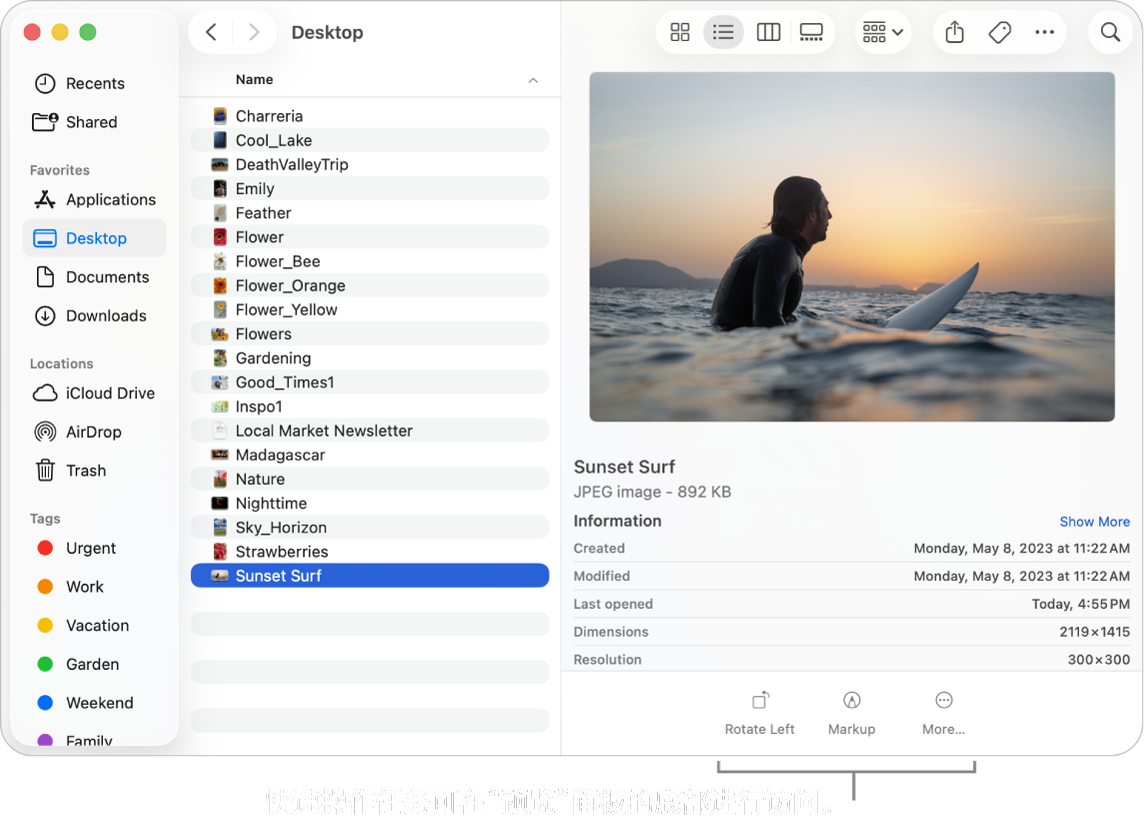
Resize and convert imagesPreview / Quick ActionsDo not install yet
Scan paper documentsContinuity CameraDo not install yet
Transfer files between Apple devicesAirDropDo not install yet
Open RAR, 7z, and encrypted archivesA system gapAdd Keka
Capture scrolling pages and run OCRA system gapAdd Shottr
Transfer to Windows or AndroidA system gapAdd LocalSend
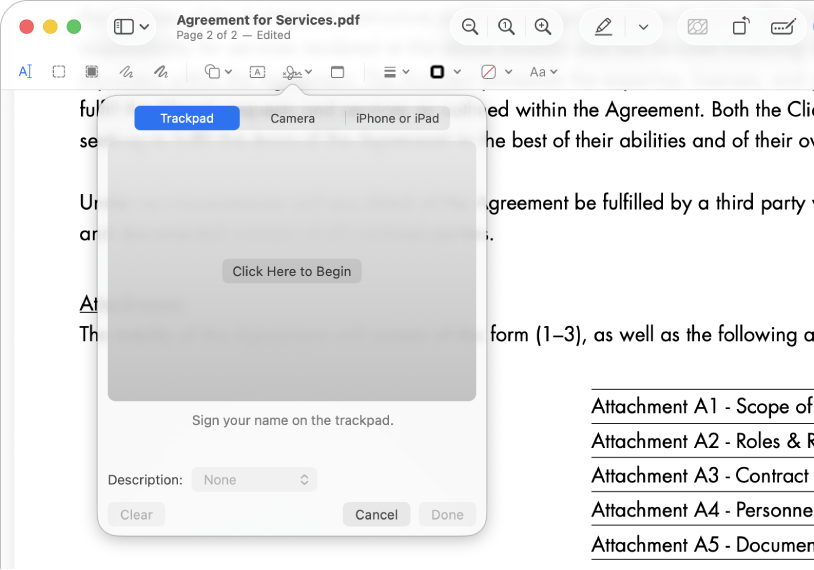
Preview can add a signature directly to a PDF. Image source: Apple Preview User Guide.
FM/01
Preview
PDF work goes far beyond opening a file
Enough
Reading, annotating, signing, and combining PDFs do not require a separate PDF suite on a new Mac.
What macOS can do
Highlight, underline, strike through, and add notes or shapes
Fill forms and create a signature with a trackpad, camera, iPhone, or iPad
Combine PDFs and add, delete, rotate, or reorder pages
Export, password-protect, and reduce the size of a PDF
Installation threshold
Install something else when you need batch OCR, paragraph-level text editing, complex form authoring, or high-volume automation.
FreeMac take
Run one real contract workflow in Preview first: open it, sign it, save a copy, and send it. Look for another app only when that workflow actually breaks.
Press Shift-Command-5 to put screenshots, screen recording, microphone input, timers, and save locations in one panel.
⇧ ⌘ 5
What macOS can do
Capture the whole screen, a window, or a selected area
Record the whole screen or a selected area
Record microphone audio and set a timer
Crop, mark up, or drag the result directly into a message or document
Installation threshold
Install another tool for scrolling captures, OCR, numbered steps, pixel measurement, or stronger redaction.
FreeMac take
Do not install an app for ordinary screenshots. A tool such as Shottr starts to earn its place when you regularly create tutorials or delivery documents.
Personal reference material, meeting notes, checklists, and scheduled reminders do not require a complex knowledge system on day one.
What macOS can do
Create rich notes with tables, checklists, and attachments
Organize with tags, Smart Folders, and search
Lock sensitive notes and sync across Apple devices
Share notes and lists for lightweight collaboration
Installation threshold
Move to another system when you need multi-person assignment, approvals, boards, versioning, cross-organization permissions, or project reporting.
FreeMac take
Tool complexity should grow with collaboration complexity. Do not build a second system before your personal workflow exists.
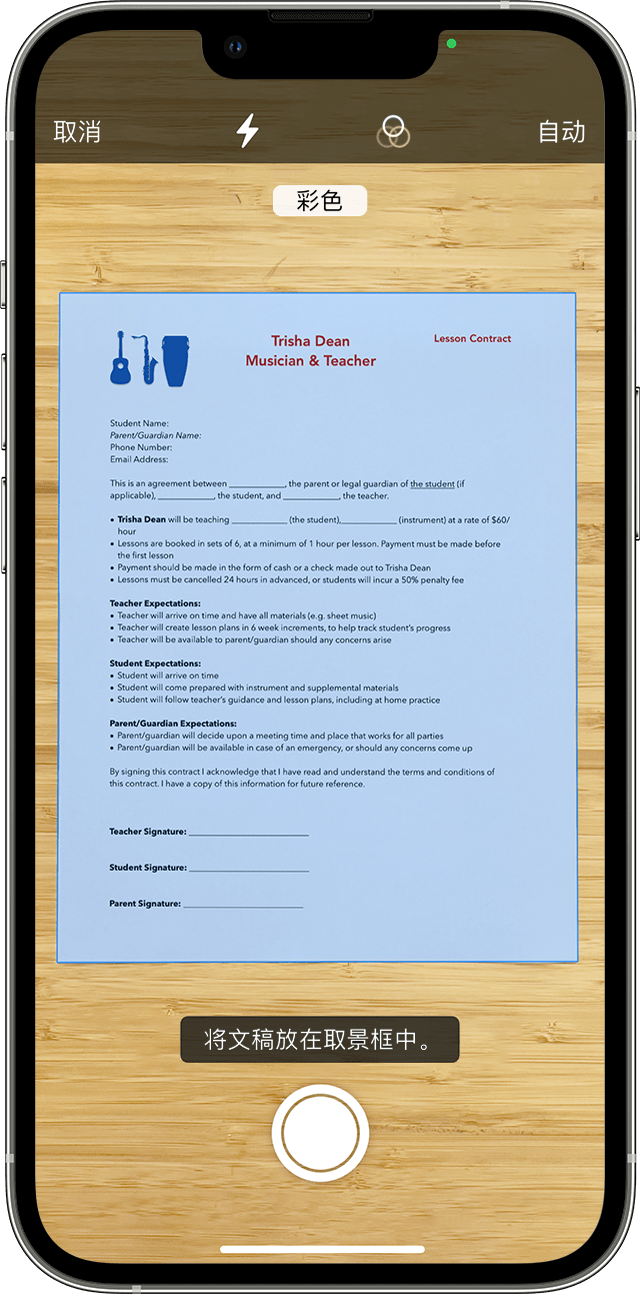
Apple Notes User Guide A document scanned on iPhone can appear directly as a PDF on Mac. Image source: Apple Support.A boundary worth naming
Are Pages, Numbers, and Keynote “built in”?
The more accurate description is Apple-provided office apps. They are included on many new Macs and are available from the App Store, but they are not base macOS components in the same way as Preview and Finder. Current versions also distinguish the capabilities included with a device from premium content or intelligence features in Apple Creator Studio.
PagesReports, notices, résumés, and ordinary documents
NumbersLists, light analysis, formulas, and charts
KeynotePresentations, animation, and live delivery
FreeMac take: they are a good starting point for files you create yourself. Recheck formatting when exchanging complex DOCX, XLSX, or PPTX files. VBA, advanced Excel models, and pixel-perfect layouts turn “it opens” into a poor compatibility test.
Continuity Camera corrects the page and creates a PDF.
02Organize and sign in Preview
Remove blank pages, reorder them, and add a signature.
03Send it with Mail or AirDrop
No unknown upload site and no unnecessary conversion.
A 30-minute setup
Complete this checklist before installing apps
01Select a file and press Space to try Quick Look
02Add a signature to a PDF in Preview and save a copy
03Drag page thumbnails to combine two PDFs
04Control-click a folder to create and extract a ZIP
05Use Shift-Command-5 to record part of the screen
06Convert one HEIC image to JPEG from Finder
07Scan one page from an iPhone directly to your Mac
08Test AirDrop and Universal Clipboard between Mac and iPhone
02 / Next
When macOS is not enough, fill the gap
Once you can name a need—RAR archives, scrolling capture, cross-platform transfer, clipboard history, translation, or window organization—continue to the FreeMac office productivity utilities ranking. It publishes the free-use boundary, system requirements, public usage signals, and deductions for every pick.
Only capabilities documented in Apple's English-language user guides appear under “What macOS can do.” Names and navigation reflect the checked date; availability can vary by macOS version, device, and region.
FreeMac does not recommend software by feature count. Our sequence is: verify the native capability, identify a real task boundary, then compare the free-use limits, maintenance, and privacy cost of third-party tools.