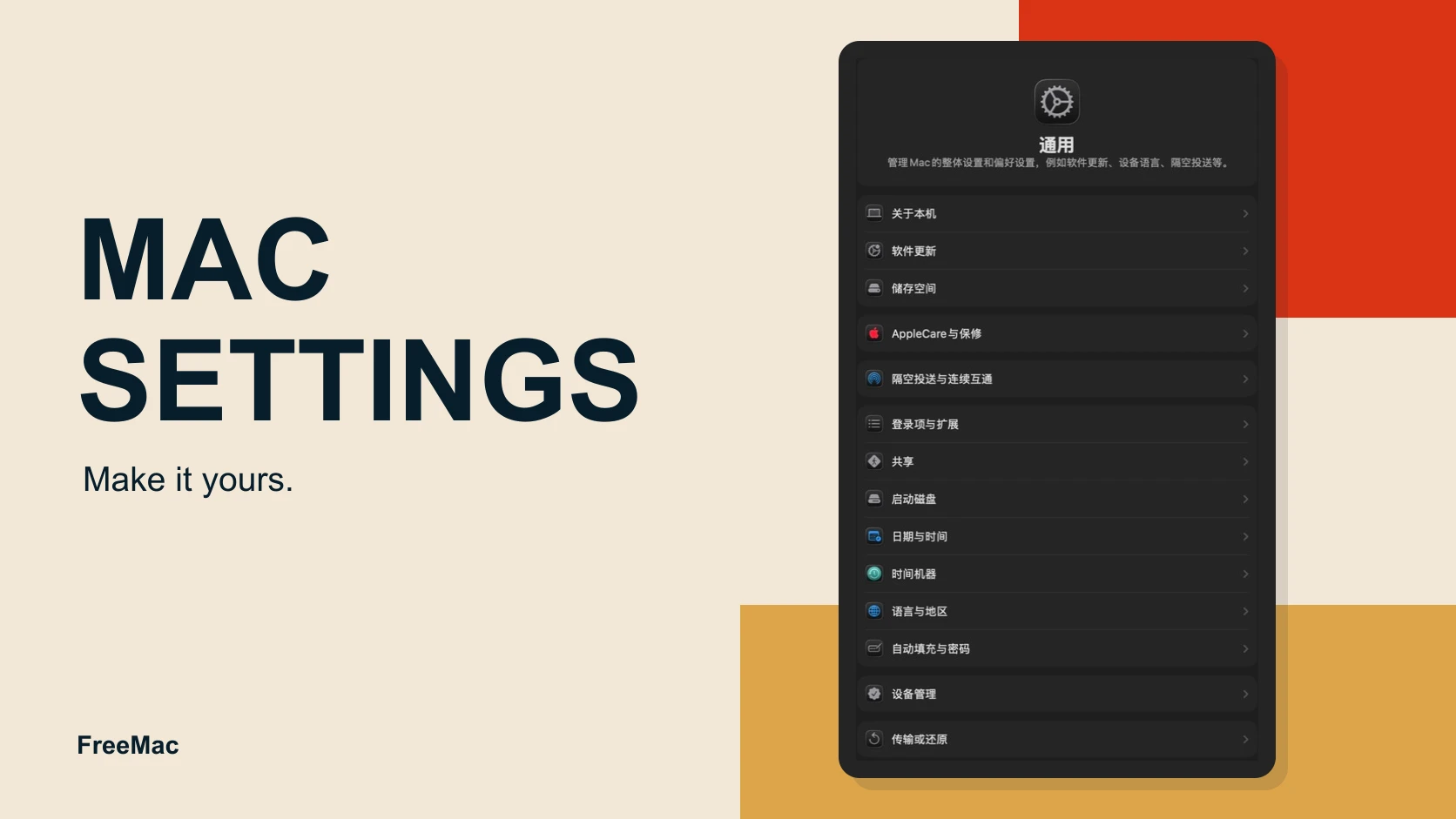
A new Mac works out of the box, but if you don't change a few key settings, you'll spend the whole time fighting the system's design philosophy.
Many people use Mac for years before realizing some settings should have been changed on day one. This guide covers all the important system preferences to help you quickly shift from Windows thinking to Mac thinking.
1. Language & Region: Don't Prioritize Chinese
Why does this matter?
Mac's system language settings affect how the entire system behaves. If you set Simplified Chinese as the primary language, some applications and system features will have imperfect localization—especially developer tools.
How to set it:
System Settings → General → Language & Region
Recommended priority order:
- English as your primary language
- 简体中文 (Simplified Chinese) as secondary
This way, the system interface and apps will use English first (for consistency), but if an app doesn't have English, it will fall back to Chinese.
Why not just use Chinese?
Windows users are used to setting their system language to Chinese. But many Mac applications—especially developer tools—have inconsistent Chinese localization. Using English directly avoids "UI terminology confusion" issues.
2. Trackpad Settings: This Is Mac's Strongest Feature
Why do Windows users always disable the trackpad?
Because they didn't adjust the settings correctly. If you use Mac's trackpad with default settings, Windows users will find it awkward. But once you fine-tune it, you'll find yourself never wanting to use a mouse again.
Concept illustration for this section, not a screenshot of macOS settings.
Key Settings:
System Settings → Trackpad
| Setting | Recommended | Reason |
|---|---|---|
| Tap to click | On | Easier than pressing, reduces finger fatigue |
| Look up & data detectors | Off | Windows users don't need this (three-finger tap) |
| Three finger drag | On | Drag with three fingers, more natural than press-then-drag |
| Tracking speed | 7-8 | Medium-high speed for responsive trackpad |
| Natural scrolling | On | Consistent with trackpad gesture logic, you'll adapt in a week |
Special tip:
If you use both a mouse and trackpad (like wanting to keep trackpad features while using a mouse), don't worry—mouse and trackpad settings are completely independent.
3. Mouse Settings: Make Windows Mice Work Normally
The most common problem: scroll direction is reversed.
Mac's default "natural scrolling" (scroll up = page moves up) makes sense for trackpads, but it's counter-intuitive for Windows mouse users.
Concept illustration for this section, not a screenshot of macOS settings.
How to fix it:
System Settings → Mouse
- Natural scrolling → Off
- Tracking speed → Medium (6-7)
- Mouse acceleration → On (if using a high-end mouse like MX Master, keeping it on provides better precision)
Extra tip:
If your Windows mouse feels too fast or too slow on Mac, adjusting "tracking speed" has limited effect. Better options:
- Install a tool called Mos (free), which specifically tunes mouse scrolling and acceleration
- If your mouse has its own driver (like Logitech mice), installing the official driver also helps
4. Keyboard Settings: Adapt to Your Typing Habits
Why are Mac keyboard settings so extensive?
Mac's keyboard architecture differs from Windows. Mac has both Option and Command modifier keys, while Windows only has Ctrl and Alt. So Mac gives you more customization space.
Core Settings:
System Settings → Keyboard
| Setting | Recommended | Explanation |
|---|---|---|
| Key repeat | Fast | Lets you quickly input the same key repeatedly |
| Delay until repeat | Short | Reduces the wait before key repeat starts |
| Press any key to disable captions | Off | Unless you watch a lot of videos |
| Use F1, F2, etc. as standard function keys | On | Needed if you use developer tools or professional software |
Custom Keyboard Shortcuts (the most practical part):
System Settings → Keyboard → Keyboard Shortcuts
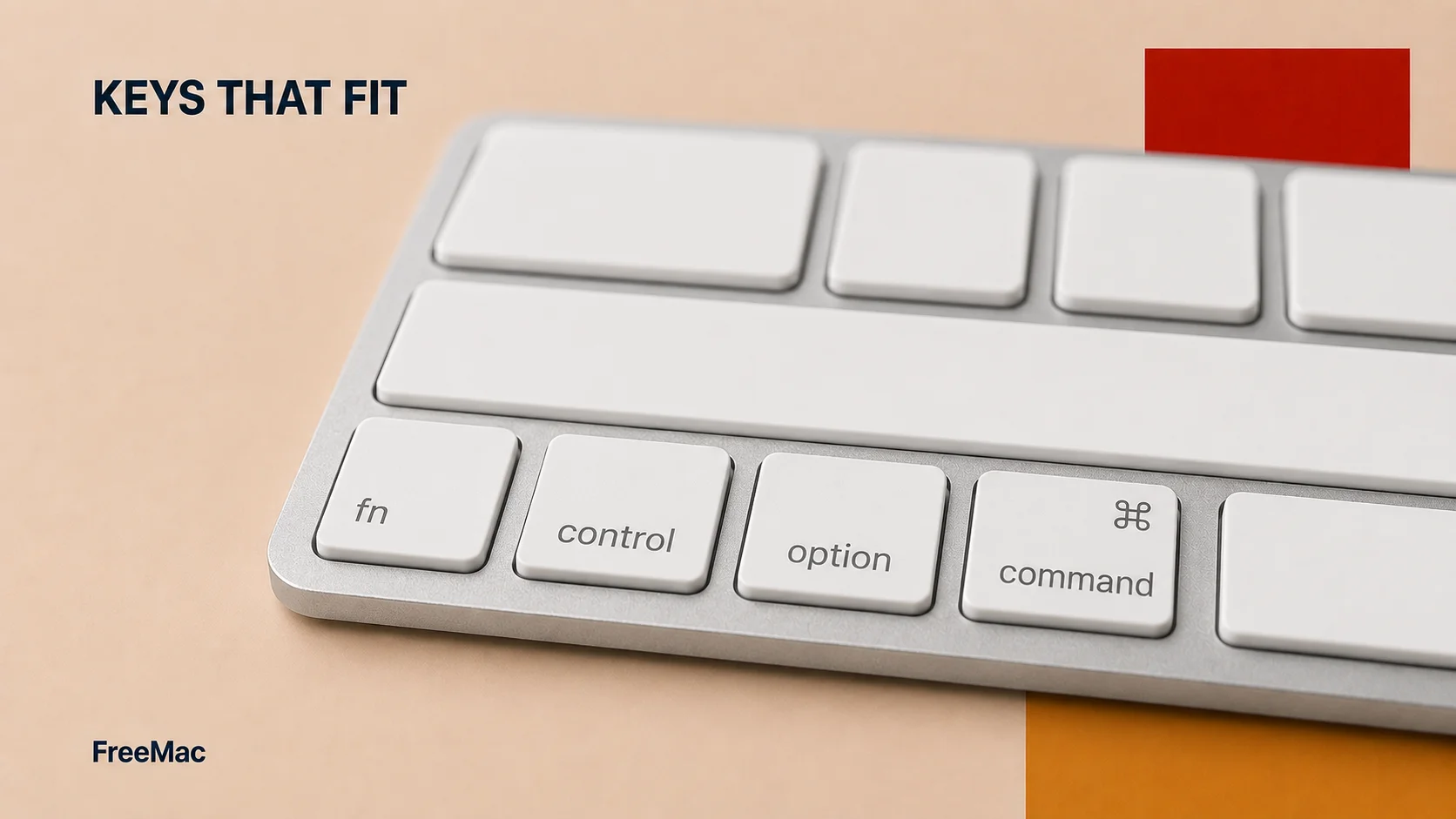
Concept illustration for this section, not a screenshot of macOS settings.
You can customize virtually any keyboard shortcut here. What do Windows users often do here?
- Modify app launcher — bind a shortcut to "open app"
- Customize window management shortcuts — if using tools like Magnet
- Modify software shortcuts — like changing VS Code shortcuts to Windows habits
5. Accessibility Settings: Optimize for Long-Term Use
Why is accessibility important for Windows switchers?
Mac's trackpad and keyboard are all-day tools. "Accessibility" isn't just for disabled users—it's also for making normal users more comfortable.
Worth Changing:
System Settings → Accessibility
-
Pointer Control → Trackpad Options
- Enable dragging → Three-finger drag (or "dragging with lock")
- Lets you drag files without holding down the button
-
Display
- Increase contrast → If your screen has bad glare
- Reduce motion → If long Mac sessions tire your eyes
-
Keyboard
- Enable Sticky Keys → If you work one-handed
- Enable Slow Keys → If you hit keys accidentally
-
Mouse and Trackpad
- Cursor size → Make it larger for easier tracking
- Enable shake to locate → Quickly magnify cursor location when needed (very useful!)
6. Notifications & Focus Mode: Reclaim Your Focus
Mac notifications will destroy your workflow.
Windows users are used to being interrupted by notifications while working. Switching to Mac, you should break this habit. The good news: Mac's notification controls are much more powerful than Windows.
Key Settings:
System Settings → Notifications
Concept illustration for this section, not a screenshot of macOS settings.
For each app, you can choose:
- Allow notifications or Disable notifications
- Show in Notification Center or Show as banners
- Play sound or Mute
- Show badge icon or Don't show
Recommended strategy:
- Turn off notifications for all non-essential apps (social media, news, shopping apps)
- Keep notifications for communication tools (email, Slack, messaging)
- Disable all notification sounds (if using Focus mode, sounds get very annoying)
Focus Mode (an even more powerful feature):
System Settings → Focus
Concept illustration for this section, not a screenshot of macOS settings.
Create several preset configurations, like:
- Work — only allow work app notifications
- Entertainment — only allow social media notifications
- Sleep — everything silent
Switching Focus modes takes one keystroke, 100x more powerful than Windows' "Focus Assist."
7. Privacy & Security: Mac's Protection Is Well Done
Do you need antivirus on Mac?
Technically, no. Mac's security architecture (code signing, sandbox isolation, Gatekeeper) is more advanced than Windows. But you still need to understand these security settings.
Key Items:
System Settings → Privacy & Security
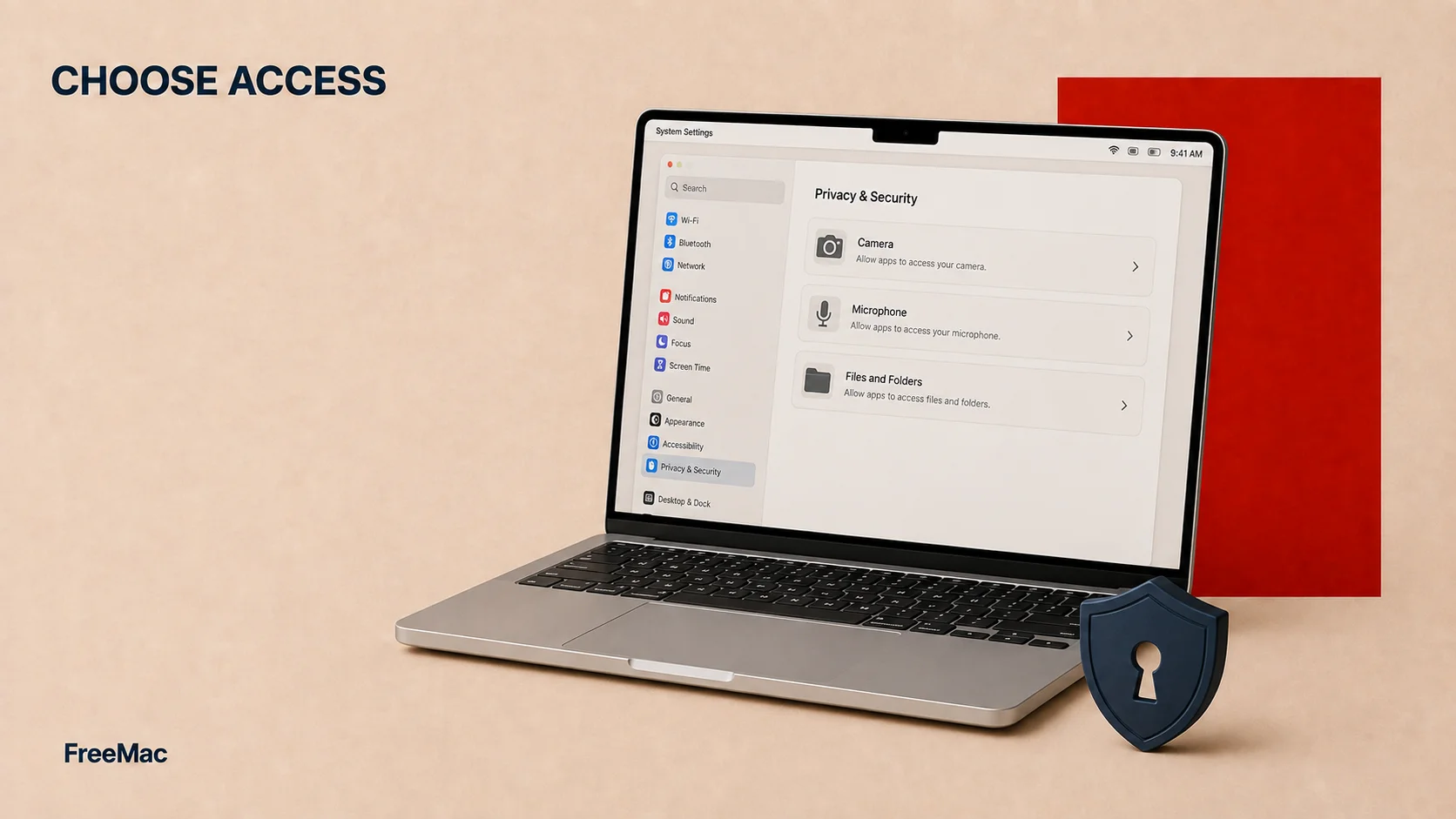
Concept illustration for this section, not a screenshot of macOS settings.
| Item | Recommendation |
|---|---|
| FileVault (disk encryption) | On — even if Mac is stolen, data is safe |
| Firewall | On — it's on by default, keep it that way |
| Allow apps downloaded from | App Store and notarized developers — safe and unrestricted |
| Camera & microphone permissions | Approve per app — only grant to apps that need it |
The most overlooked privacy setting:
System Settings → Privacy & Security → Analytics → Uncheck all items
This prevents Mac from automatically collecting usage data.
8. Network & Internet: Proxy and VPN Configuration
If you need to use a VPN or proxy.
System Settings → Network
Note these settings are global—they affect all apps' network connections. If you use an enterprise VPN, your company IT usually provides a config file, just import it.
Proxy Settings (advanced users):
System Settings → Network → Advanced → Proxies
Most people don't need to touch this unless you have special network requirements.
9. Sound & Haptics: Subtle Experience Improvements
Why does Mac's sound feel weird to Windows users?
Mac's system sounds are carefully designed, typically very quiet. Plus, Mac uses stereo, so you might need adjustment.
How to set it:
System Settings → Sound
- Output volume — set to a comfortable level (not maximum)
- System effects volume — adjust separately (recommend keeping low or completely off)
- Show volume in menu bar — can disable to avoid the "beep" every time you adjust
Haptic Feedback (MacBook exclusive):
System Settings → Trackpad → Tap and Click
Enable "Haptic feedback" to get subtle vibration when using the trackpad. Some like it, some find it annoying—your choice.
10. Battery & Power: Optimize Your Runtime
Why doesn't Mac's battery last as long as Windows?
System Settings → Battery
Key Settings:
- Low Power Mode on battery — On (limits background activity)
- Automatic brightness — On (significantly extends battery life)
- Automatic graphics switching (M1/M2/M3 chips) — On (switches between integrated and discrete GPU)
Extra optimization:
If battery is still draining fast, check Activity Monitor (Applications > Utilities > Activity Monitor) to see which process uses the most power. Sometimes a background app gets stuck in a loop.
11. Siri & Spotlight: Two Powerful Search Tools
Spotlight is Mac's version of the Start Menu, but better.
System Settings → Siri & Spotlight
Recommended Setup:
- Enable Spotlight → definitely yes
- Searching includes → customizable, but default is fine
- Siri → disable if you don't like voice control, or just enable "Listen while holding Cmd+Space"
Usage Tips:
Press Cmd+Space, then:
- Type an app name to launch it
- Type a filename to search
- Type "weather" or "calendar" to quickly view info
- Type a calculation like "12 * 45"
Many Windows users to Mac say this is their favorite feature.
12. Date & Time: Auto-Sync
Usually doesn't need changing, but worth understanding:
System Settings → General → Date & Time
- Set date and time automatically — keep on (Mac auto-syncs from the internet)
- Time zone — auto-detect (or manually set if you travel)
- 24-hour time — based on preference (Chinese users typically prefer 24-hour format)
Summary: Priority Checklist
Don't change everything at once. Go by priority:
Day One Must-Change (3 items):
- ✅ Trackpad settings (tap to click, natural scrolling, tracking speed)
- ✅ Mouse natural scrolling (if using a mouse)
- ✅ Turn off unnecessary notifications
Week One Recommended (3 items):
4. Change system language to English-first
5. Enable FileVault disk encryption
6. Set up Focus modes
Can Adjust Gradually (rest):
7. Customize keyboard shortcuts
8. Review privacy permissions one by one
9. Performance optimization (as needed)
Final Words
Mac's system settings look like a lot, but they're actually simpler than Windows. The difference:
- Windows gives you thousands of options, but defaults are often not optimal
- Mac has good defaults already, you just need to tweak a few items for the best experience
After changing these settings, you'll find Mac transforms from "hard to use" to "best to use."
Do not rush to install a long list of apps next. Use the Windows to Mac Roadmap to identify your current stage, then choose only the missing tools from the 2026 free Mac apps list.
Continue reading
Free Alternatives to Paid Mac Software: What to Try First
Choose free Mac alternatives by task, with clear starting points for uninstalling, office work, windows, images, archives, and when paid tools still save time.
12 min readWindows to Mac Roadmap: Your First Day and First Week
A staged Windows-to-Mac roadmap covering first-day comfort, system settings, input methods, free essential apps, office files, and optional developer setup.
10 minutesMac Trackpad Gestures: A Practical Productivity Guide
Learn the Mac trackpad gestures that matter, how they map to real workflows, and which settings help you navigate apps, desktops, and documents faster.
Subscribe to FreeMac
Weekly picks: free Mac software reviews, trusted source updates, alternatives, and low-friction guides.