Start here
A new Mac does not need a checklist of apps to install. Try Spotlight for launching apps, the system's window controls for arranging your workspace, and Notes for quick captures. Add a tool when a particular step keeps getting in your way.
At FreeMac, we ask three questions: Which step does this remove? How often do you encounter the problem? How much setup and maintenance does the tool add? Free software is a useful starting point. What earns a permanent place is a tool that fits your habits, lets you take your data elsewhere, and creates less work than it removes.
This guide covers 12 scenarios. The first six address everyday needs; later sections cover automation, writing, and development. Skip network debugging if you do not need it. For a closer look at replacing a particular paid app, start with our free Mac software alternatives hub.
Features and payment models were checked against official sources on September 7, 2026. This is a selection guide, not a benchmark or a report of long-term hands-on testing. Interfaces and supported system versions depend on the current download. Subscriptions, purchases, and trials are distinct: a time-limited trial is not a free plan.
Match the tool to the problem
| Your problem | Start with | When another tool may help |
|---|---|---|
| Finding apps and common actions | Spotlight | Raycast for a shared entry point to clipboard history, commands, and extensions |
| Constantly repositioning windows | macOS window tiling | Rectangle for thirds and consistent keyboard layouts |
| Finding somewhere for temporary text | Notes | Tot for a separate, compact scratchpad |
| An external mouse feels awkward | System mouse settings | Mos for smooth scrolling, independent direction settings, and app rules |
| Managing passwords across devices | Apple Passwords and iCloud Passwords | Bitwarden or 1Password for different platform and sharing needs |
| Running out of space or removing apps | System storage management | AppCleaner for an app's associated files |
| Repeating a sequence of actions | Shortcuts | Alfred Powerpack for custom keyword-driven workflows |
| Too many menu bar icons | Turn off unused menu bar entries | Consider Ice after checking system compatibility |
| An archive will not open | The system archive utility | The Unarchiver for extraction; Keka for creating archives |
| Writing Markdown regularly | Your existing text editor | Try Typora if you prefer formatting to appear as you write |
| Investigating application requests | Browser developer tools | Consider Proxyman for desktop or mobile app traffic |
| Repeatedly rearranging Markdown tables | Your editor's table features | Try TableFlip when table editing is recurring work |
The number 12 refers to scenarios. Apps within a scenario are usually alternatives, not a bundle to install together.
1. Launching apps: learn Spotlight before replacing it
If your daily needs are a browser, an editor, and a few files, press Command + Space, type an app name, and press Return. Build that habit before deciding what is missing.
Raycast is worth considering when it brings several regular actions into one place: retrieving recently copied text or reaching a service through an extension, for example. Its free plan includes clipboard history, window management, and public extensions. AI and cloud sync have paid boundaries; access to extensions alone is not a reason to upgrade to Pro.

Concept illustration: bring common entry points together. This is not an actual Spotlight or Raycast interface.
Start with two actions you use frequently. Keep Spotlight's shortcut initially, and only change your main launcher once you know Raycast will stay. If Raycast already handles your window layouts, you may not need another window manager.
FreeMac's choice: install a launcher when it consolidates useful actions. Spotlight remains a sensible choice for simply opening apps. Check the Raycast website for the current Mac download and requirements; service extensions may also require their own accounts and permissions.
2. Arranging windows: use Rectangle for a layout you repeat
Recent macOS versions support dragging windows into tiled positions, along with menu and keyboard controls. Try two real work windows first: a reference on the left and a document on the right. Apple's tiling guide explains the controls; older systems differ.
Consider Rectangle if you repeatedly need thirds, moves between displays, or a consistent set of keyboard layouts. The official website offers a free, open-source version with both drag snapping and keyboard controls. It currently lists macOS 10.15 or later, with Intel and Apple Silicon support.
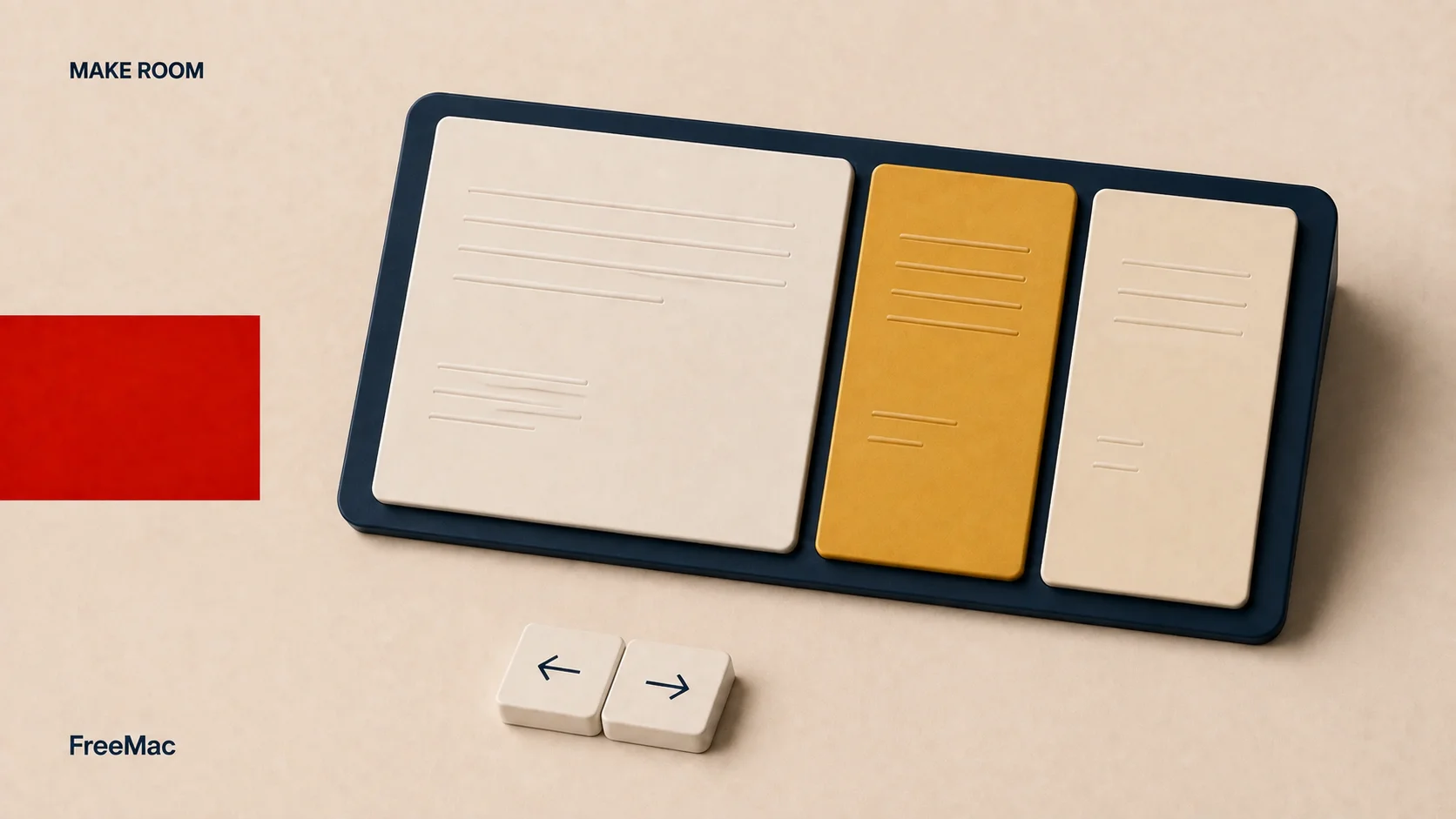
Concept illustration: arrange windows around the task. Actual layouts and shortcuts depend on your system or app settings.
There is no need to memorize the entire panel. Start with left half, right half, and restore size, then add a thirds layout if needed. Filling the desktop is also different from entering full-screen mode in a separate space.
If native tiling fits, keep it. If your layouts need more consistency, try free Rectangle. Avoid having multiple tools handle the same drag targets; keep one set of rules if they conflict.
3. Temporary notes: Tot is a scratchpad
Notes can usually handle a meeting link, a copied paragraph, or a few things to do today. Another app becomes useful when you want these scraps separate from your lasting notes.
Tot focuses on lightweight text capture, with rich and plain text, Markdown-related features, and iCloud syncing. The current website describes free use with paid premium features. Check the linked App Store listing for platform requirements and in-app purchases.
Put a piece of temporary text into it and try the whole cycle: capture, find it again, then clear it. Moving text into an app you rarely open does not reduce work.
Tot suits short-lived text. Long documents, team collaboration, and code editing belong in tools designed for those jobs. We do not recommend Tot as a syntax-highlighting code editor or dismiss Notes simply for being built in.
4. External mice: tune scrolling with Mos
A mouse wheel and a trackpad may need different settings. Try the system's direction and tracking controls first, then distinguish an awkward pointer from awkward page scrolling.
Mos is a free scrolling utility with smoothing, direction settings, and per-app adjustments. Its website currently lists macOS 10.13 or later. Scroll curves and pointer acceleration are different controls and should not be treated as interchangeable.

Concept illustration: mouse and trackpad preferences can differ. This image contains no measured curves or recommended parameter values.
Begin with defaults and try a browser, a document, and a spreadsheet. If an app starts to feel sluggish, disable smoothing or adjust its rule rather than changing every parameter at once.
Skip this if you only use a trackpad or already like the scrolling behavior. If a mouse manufacturer's driver is installed, check its existing controls before stacking another layer of adjustments.
5. Passwords: choose around devices and sharing
If you mostly use a Mac and iPhone, check whether Apple's password features meet your needs. A Windows PC does not automatically rule them out: iCloud for Windows supports password management and browser extensions, subject to Apple's setup requirements.
Compare third-party tools when you need other platforms or a different sharing model:
| Option | Free limits and payment model | What to verify first |
|---|---|---|
| Apple Passwords / iCloud Passwords | Provided through Apple's system and iCloud ecosystem; Windows needs the relevant components | Autofill on your actual devices and browsers |
| Bitwarden | Free core password management and unlimited devices; free sharing is limited, and the multi-user family plan is paid | Platform coverage, importing, and everyday filling |
| 1Password | Paid subscription with a trial | Whether its sharing, recovery, and daily workflows justify the cost |
See Bitwarden's plans and the 1Password personal pricing entry. Bitwarden's free two-person sharing is not an unlimited free family plan.
Check sign-in and autofill on your regular devices before planning a migration. Interface preferences and “military-grade” labels are not a sufficient basis for choosing a password manager. Self-hosting also makes backups, updates, and recovery your responsibility; it is not a required money-saving step for beginners.
6. Storage and uninstalling: identify what occupies the disk
When storage is tight, open System Settings → General → Storage. Find out whether applications, downloads, or your own media files account for the space. The system provides ways to review and act on some items, rather than merely showing numbers; see Apple's storage guide.
For associated files left by a specific unwanted app, try AppCleaner. Drop the app into its window, review the list, then decide what to delete. The website provides downloads for different system versions, so choose one appropriate to an older Mac.
Large video files and leftover application files call for different decisions. Deleted caches may be rebuilt, and a number of gigabytes reclaimed does not translate directly into a faster computer.
AppCleaner is a free tool for removing individual apps, not a complete maintenance suite. For drivers, system extensions, or vendor components, check the vendor's uninstall instructions first. Our AppCleaner and CleanMyMac comparison discusses the wider boundary; a cleaning suite is not part of the default setup here.
7. Repeated actions: define the workflow before choosing Alfred
“Be more productive” is too broad. Try a specific sentence: “Type a project abbreviation to open its folder and documentation.” That describes something you can evaluate for automation.
For simple sequences, try Shortcuts or a script entry point in a tool you already have. For more involved combinations of keywords, hotkeys, and file actions, consider Alfred Powerpack. Alfred's core launching and search are free; workflows and clipboard history belong to Powerpack. The current Alfred 5 download information lists macOS 10.14 or later, with Intel and Apple Silicon support.
You do not need an overall winner between Raycast and Alfred. Look at Raycast for existing extensions and Alfred when you want to assemble workflows. A stable setup is a good reason to avoid rebuilding it in another tool.
Before paying, describe one workflow you intend to automate and check the features and license it needs. Setup and maintenance time belong in the cost calculation too.
8. Menu bar clutter: reduce background entries first
Start by checking which apps do not need a permanent menu bar entry. Turning those entries off can be more useful than putting everything inside another menu.
If you still need to hide and reveal groups of icons, consider free, open-source Ice. Its project documentation requires macOS 14 or later. Meeting a minimum requirement does not establish compatibility with every newer system release.
On macOS Tahoe in particular, read the release notes for compatibility status, then check hiding and revealing items on your own built-in display, notch area, and external monitor. We do not treat Ice as a default installation for every Mac.
If the icons are not getting in your way, leave them alone. A menu bar tool should make controls easier to find, not merely make a desktop screenshot tidier.
9. Archives: separate extraction, creation, and browsing
Let the system handle ordinary ZIP files first. Add a tool for formats or archive creation needs it does not cover. A table full of checkmarks can obscure the differences between these tasks.
| Task | Candidate | Free and paid boundaries |
|---|---|---|
| Extract RAR and other archives | The Unarchiver | Free; focused on extraction |
| Create and extract several archive formats | Keka | Free website download; the paid App Store version supports development. The developer describes the same app with a different update channel |
| Browse contents, edit archives, and reuse presets | BetterZip | Paid main app with a trial; the website separately offers its Quick Look preview extension for free |
For receiving and extracting files, start with The Unarchiver. For preparing archives to send, try Keka. Frequent archive editing and reusable presets are reasons to evaluate BetterZip.
Keka's current download lists macOS 10.10 or later. Check the other apps' download pages for current requirements. Extracting RAR and creating RAR are separate capabilities; a format name does not establish support for both.
Use a real, non-sensitive sample. Check filenames, folders, and contents after extraction; reopen an archive you create. If a Windows colleague will receive it, successful opening on their machine matters more than a longer list of obscure formats.
10. Markdown writing: try Typora for the editing experience
If writing Markdown in VS Code or another existing editor works for you, there is no need to buy an app to make the work feel more professional.
Try Typora if you prefer formatting to appear as you write, with less switching between source and preview. It supports tables, code blocks, and math, with downloads for macOS, Windows, and Linux. Check specialized syntax and exported output using your own documents.
The price shown when checked was US$14.99 before tax, with a 15-day trial and use on up to three devices. It is paid software; an early free beta is not a current, ongoing free plan.
Open an article you are actually writing during the trial. Check image paths, table editing, and the final export. Pay if it helps you finish the work; keep your current editor if a nicer theme comes with extra delivery steps.
11. Network debugging: Proxyman is for people who need it
This section is for developers. For a webpage's requests, start with browser developer tools. Consider Proxyman when you need to inspect HTTP/HTTPS traffic from desktop or mobile apps.
It offers a free starting point, but that does not make the complete debugging feature set free. Current individual plans distinguish perpetual licenses and update periods; advanced features such as breakpoints, mapping, and scripting have license boundaries. The old blanket description of “Pro for $10 a month” is not an appropriate buying guide. Check the platform and system requirements for your download too.
Set a trial goal around one request: find it, inspect what you need, and reproduce the problem. HTTPS inspection needs appropriate proxy and certificate configuration, and certificate pinning can impose further limits. Follow the official documentation; do not assume every app's traffic can be inspected directly.
Inspect only traffic you are authorized to debug, and remove tokens, cookies, and personal data before sharing logs. Skip this category if you do not develop software or troubleshoot networks.
12. Markdown tables: try TableFlip when editing becomes routine
Your current editor is enough for an occasional three-row table. A separate tool becomes worth considering when you frequently add columns, move rows, or maintain comparison tables.
TableFlip provides visual editing of tables inside Markdown files, along with formats such as CSV and JSON. It offers a 30-day trial, followed by purchase, and lists macOS 10.15 as its minimum system version.
It is not an Excel replacement. The website lists Excel format support as upcoming, so it should not be described as an existing export feature. Formulas, pivot tables, and complex calculations belong in spreadsheet software.
Try adding a column and rearranging rows in a copy of a Markdown file, then inspect the saved document. If your existing editor already makes those actions easy, keep the money.
Leave some room in your setup
You do not need an annual software budget before you begin. Write down one thing that got in your way this week: finding files, arranging windows, or opening an archive. Pick one solution above and address it.
After a week, ask:
- Did I deliberately use this tool?
- Did it remove steps, or merely provide a different entry point?
- Would uninstalling it interrupt a habit I have actually established?
If the answers are unclear, hold off on adding another tool in the same category. Free apps still bring permissions, updates, shortcuts, and data to manage. A paid app that reliably solves a frequent problem can be a good choice too.
If you recently switched from Windows, start with the Windows-to-Mac roadmap. For more task-based choices, see our free software rankings and built-in Mac office features.
FreeMac aims to help you build a setup you can explain: why each tool is there, when you use it, and when you can do without it. A desktop with fewer icons can still be a complete setup.
Continue reading
Free Alternatives to Paid Mac Software: What to Try First
Choose free Mac alternatives by task, with clear starting points for uninstalling, office work, windows, images, archives, and when paid tools still save time.
12 min readWindows to Mac Roadmap: Your First Day and First Week
A staged Windows-to-Mac roadmap covering first-day comfort, system settings, input methods, free essential apps, office files, and optional developer setup.
5 minutesBest Chinese Input Methods for Mac: 4 Options Compared
Moving from Windows to Mac? FreeMac compares Apple, Sogou, WeType, and Baidu to help you decide whether to keep built-in Chinese input or switch for specific features.
Subscribe to FreeMac
Weekly picks: free Mac software reviews, trusted source updates, alternatives, and low-friction guides.