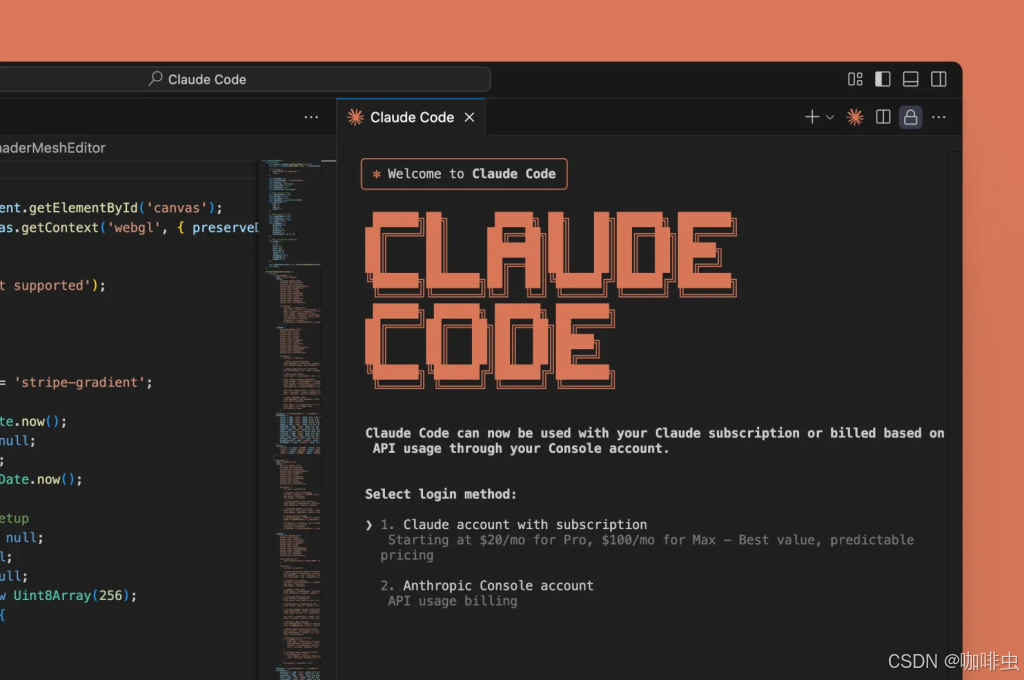
Why You Should Not Install Claude Code Globally
When people first start using the Claude Code CLI, their instinct is often to install it globally with npm install -g @anthropic-ai/claude-code. That way they can run claude from any directory, which feels convenient.
The problem is that the official recommendation is actually the opposite: do not rely on a global install. Install it locally inside each project instead. This article explains why, then shows how to migrate and keep the same convenience through an alias and proxy configuration.
1. Why a global install is not ideal
A global install is convenient, but it creates several real problems:
-
Version conflicts
- A global install gives you only one version.
- If project A needs a newer version and project B still depends on an older one, they fight each other.
-
Poor portability
- A global install is not recorded in
package.json. - If you hand the project to someone else,
npm installwill not give them the sameclaudeCLI automatically.
- A global install is not recorded in
-
Harder debugging and upgrades
- The project dependencies and the CLI tool version drift apart.
- When something breaks, it becomes harder to tell whether the problem is in your code or in the CLI version.
-
Hidden configuration problems
- The official
/doctorcheck often reports messages like:
CODEConfig mismatch: running npm-global but config says unknownThat is one of the classic symptoms of a global install.
- The official
So the better pattern is simple: install Claude Code locally per project.
2. How to check for and remove a global install
First, confirm whether you installed it globally:
which claude
type -a claude
If the path looks something like this:
/Users/xxx/.nvm/versions/node/v20.19.2/bin/claude
then you are running the global version.
To remove it:
npm uninstall -g @anthropic-ai/claude-code
3. Install Claude Code locally
Move into your project directory, for example:
cd /Users/stevenlv/mylab/20250904claude
Install Claude Code into devDependencies:
npm install -D @anthropic-ai/claude-code
Now the version is recorded in package.json, and anyone else can reproduce the same environment with a normal npm install.
To run it:
npx claude status
Or add a script in package.json:
{
  "scripts": {
    "claude": "claude"
  }
}
Then run:
npm run claude status
4. Use an alias so you can still type claude
Add this to ~/.zshrc or ~/.bashrc:
alias claude="npx --no-install claude"
Then reload your shell:
source ~/.zshrc
Now the behavior becomes much better:
- inside a project that has Claude Code installed locally, typing
clauderuns the project version - in a directory without a local install, it fails immediately instead of silently pulling in a global or ad hoc version
5. Why --no-install matters
If you write this:
alias claude="npx claude"
then when Claude Code is not installed locally, npx may download the latest version from npm automatically and run it.
That creates several problems:
- the CLI version can drift away from what the project expects
- historical issues become hard to reproduce
- you may get silent upgrades that introduce compatibility bugs
By adding --no-install, you force the alias to:
- use only the locally installed version
- fail immediately if the dependency is missing
- keep the project environment predictable
That gives you convenience without giving up control.
6. Proxy setup, optional but highly recommended
If you are in mainland China or use a proxy for general network access, the CLI may also need proxy settings. A practical approach is to define them in ~/.zshrc:
# HTTP/HTTPS proxy
export HTTP_PROXY=http://127.0.0.1:7890
export HTTPS_PROXY=http://127.0.0.1:7890
export ALL_PROXY=http://127.0.0.1:7890

# Local addresses that should bypass the proxy
export NO_PROXY=localhost,127.0.0.1,::1
Then reload your shell:
source ~/.zshrc
Verify that the proxy works:
npx claude status
npx claude doctor
If the proxy is configured correctly, the API requests should work normally.
Summary
- Do not install Claude Code globally unless you have a very specific reason.
- The recommended approach is to install it locally inside each project and run it through
npxornpm run. - If you want the same convenience as a global command, add an alias, but use
--no-installso it never pulls the wrong version. - If you need a proxy, configure
HTTP_PROXY,HTTPS_PROXY, andALL_PROXYso CLI requests remain stable.
That way you keep the convenience of typing claude, while preserving reproducibility and version consistency across projects.
Related FreeMac Guides
- For broader workflow lessons, read what I learned after 10 months with Claude Code.
- For browser debugging with AI, continue with Claude + Chrome DevTools MCP.
- For hook-based guardrails, see the Hookify guide.
Project-level setup is usually better
The strongest reason to avoid a global install is reproducibility. A project-level setup makes it clearer which version, scripts, environment variables, and proxy assumptions belong to that repository. When another machine or teammate runs the project, the same commands are easier to explain.
Use a global command only as a convenience wrapper around a known local command. If your alias can accidentally download a fresh package or run a different version from another project, it is convenience at the cost of debugging time.
For serious work, add a short note to the project README or internal setup guide: how to run Claude Code, which proxy variables are expected, and which files should not be modified automatically. That turns a personal trick into a maintainable workflow.
Continue reading
What I Learned After 10 Months with Claude Code
Practical Claude Code lessons covering skills, hooks, MCP management, and a simpler configuration philosophy based on ten months of real-world use.
21 minHookify Guide: Generate Claude Code Hooks Without Handwritten JSON
Use Hookify to create Claude Code hooks through conversation, understand its rule files, apply practical automations, and debug hooks that do not run.
8 minClaude + Chrome DevTools MCP: Browser Debugging Guide
Connect Claude to Chrome DevTools through MCP so it can inspect the DOM, run JavaScript, examine browser state, and help debug real web pages.
Subscribe to FreeMac
Weekly picks: free Mac software reviews, trusted source updates, alternatives, and low-friction guides.